The Execute Package Rules feature is used to assemble (or generate)
a PDF output of the package rules associated with an REQ file (and transaction data)
that contains a list of errors and additional information for testing purposes organized
by document package rules.
Each document belongs to one or more packages, which is typically the same
as the “line of business” and a phase. Packages and phases should be predetermined prior
to the start of a release. Package rules allow you to select the package and phase, then
have selection rules and/or suggestion rules as to when the document would be included
in the package and phase. The selection and suggestion rules both have Business Logic
and Product Technical
Rules.
Note: After using Remove Override on a Package Row Suggestion Rule, PTR and Business Logic may be reverted to inherited values; re-run your package rule tests if you rely on overridden values. Additionally, Remove Override now supports Package Row items: removing an override on a Package Row clears the override flag and restores Package IDs and Custom Data to their inherited values.
On the
Test menu, select
Execute Package Rules..., or press
Ctrl+Shift+A. If no errors are identified, the Select Transaction Xml dialog
is displayed.
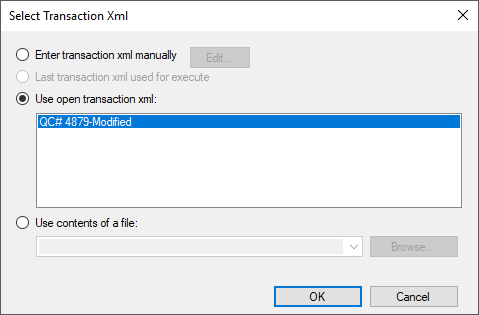
Next, select the source of the transaction data from the list of available
options.
- Enter transaction xml manually
- Last transaction xml used for execute
- Use open transaction xml - Select this option to use an
embedded external or internal transaction.
- Use contents of a file - Select this option to use an
external transaction file.
- Select ancillary output xml fragment - This feature
allows you to test ancillary barcodes and watermarks. The selections include a
blank option to indicate no fragment will be processed and any fragments
inlcuded with the installation.
Once the transaction data source is defined, the system then processes the
REQ file and creates a PDF output. The resulting PDF(s) automatically open and can be
reviewed, printed, and saved as a separate file.
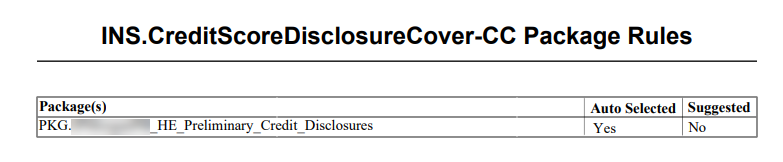
Note: The Package(s) column of the Package Rules table should
provide ample room for the Package name (below). If the Package name runs over into
the AutoSelected column, reduce the number of characters within the PackageID for
that item.
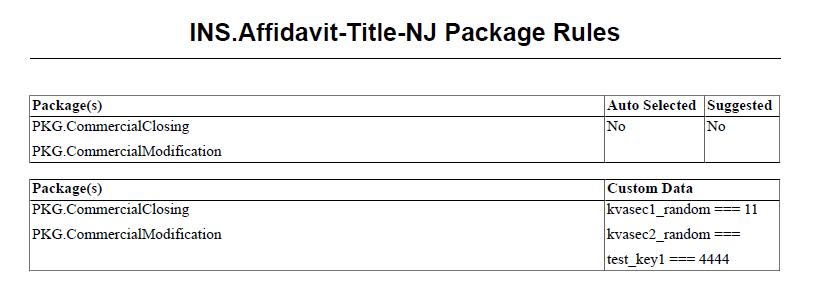
Note: When executing package rules, the resulting PDF file
includes the Custom Data values in a separate table below the original Package Rules
table. This table is not shown if no Custom Data values are indicated in the Package
Rules tab.
PTR Schema Warnings
When executing a document, Requirements Editor first checks to see if there are any
content errors. If any exist, a warning message similar to the following is
displayed.
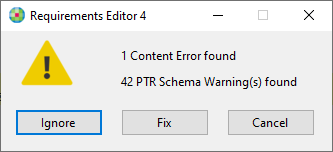
The message displays the number of content errors and PTR Schema Warnings identified.
The number of content errors is a direct reflection of the errors found within the
Content Errors pane.
Selecting Ignore ignores the identified errors and continues with the document
execution process.
Selecting Fix displays the Content Errors pane
allowing you to view and address the identified issues. If there's nothing listed
under the Error(s) section of the Content Errors pane, the Fix button
redirects to the Field Grid tab with the first PTR from the warnings list
highlighted.